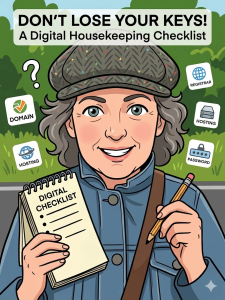
 I often find with my clients that they don’t know where things are. When crunch time comes, they don’t know who owns their domain name, where they bought it, or what the passwords are. I’ve been coming across this a lot more lately, and when you need these details, it’s always at the moment when you REALLY need them.
So, I thought I’d put together a little housekeeping checklist of things to keep to hand at all times. I hope this helps!
The “Where On Earth Is It?” Checklist
1. Your Domain Name (Your Digital Front Door)
This is the big one. If you lose track of this, your website and your emails can literally vanish overnight.
-
The Registrar: Who did you buy it from? (Think names like 123 Reg, GoDaddy, or Namecheap).
-
The Logins: Not just the password, but which email address is linked to the account?
-
Ownership: Is it definitely in your name? Sometimes an old employee or a previous dev might have registered it to themselves—check this now!
2. Website Hosting
If the domain is the address, the hosting is the house itself.
-
The Provider: Who are you paying every month to keep the site online?
-
The Control Panel: Access to things like cPanel or your hosting dashboard is vital if something goes wrong.
3. The “Engine Room” (CMS)
This is where you go to actually change your text or add a blog post.
-
Admin Access: Ensure you have a “Super Admin” login. Being an “Editor” is fine for day-to-day, but you’ll need full access for the big stuff.
-
Theme & Plugin Licenses: If you’ve paid for fancy features, keep a note of those license keys so they don’t expire.
A few extra bits you might have missed…
Since you asked for other things people usually forget, here are the ones that always seem to go missing:
-
Google Business Profile: Who “owns” your listing on Google Maps? If you can’t log in, you can’t reply to reviews or update your opening hours.
-
Professional Email Admin: If you use Google Workspace or Microsoft 365, your “admin” login is different from your everyday email login. You’ll need it to add new staff or change billing.
-
Your Brand Assets: Not just a grainy logo you copied off Facebook! Try to keep your original “vector” files (.AI, .EPS, or .SVG) and your specific brand colour codes (those #HEX codes) in a folder.
-
Stock Image Licenses: If you’ve bought professional photos for your site, keep the receipts or licenses. It saves a lot of worry if a copyright bot ever comes knocking.
-
Analytics Access: Make sure you have ownership of your Google Analytics. You don’t want to lose years of traffic data just because you’ve moved to a new provider.
My Top Tip: Don’t use a Post-it note!
It’s tempting to scribble these on a bit of paper or keep them in a “Passwords” Word doc, but please—for your own sanity—use a password manager. Something like Bitwarden or 1Password is a lifesaver. It keeps everything encrypted, and you can share access with your designer (like me!) safely when the time comes.
A tiny bit of sorting now means no more frantic digging through old emails when we’re trying to get your brilliant new project launched.
I hope that helps! Is there anything else you’ve struggled to find recently that I should add to the list?